Check Media Details Before You Edit in Descript
Oct 02, 2026
Direct answer: Before you start cutting in Descript, open the Project panel’s Files list, left-click your source to open the floating preview, and read the file details—frame rate, duration, stereo/mono, resolution, usage, and transcription language. Diagnose (and fix or replace) a bad source first so you do not waste an edit pass on the wrong clip.
This article was written with AI, based on a real Descript Made Easy lesson by the humans behind Descript Made Easy.
Why check media details before you edit?
Editing feels productive—until you notice the video is choppy, the audio is weird in stereo, or the clip is the wrong resolution. The Descript Made Easy lesson on Media Details and Settings shows that every source lives in the project Files list. A short pre-edit inspection ritual uses that panel to catch problems before you rearrange the transcript or timeline.
For the full feature walkthrough (folders, search/sort/filter, unused-file dots, list vs thumbnails), see Media Details and Settings in Descript: Beginner Guide. This post is the when and why: check first, then edit.
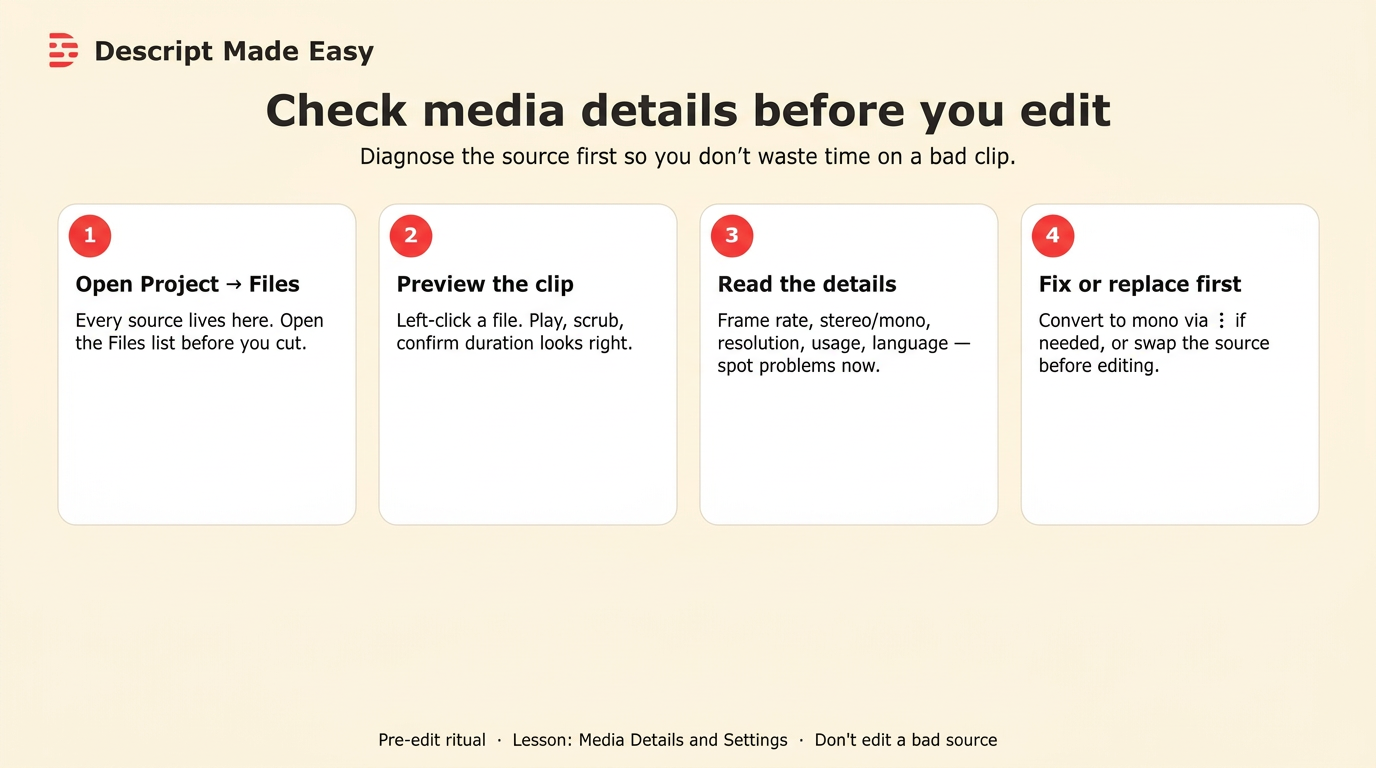
Pre-edit ritual: open Project → Files → preview the clip → read the details → fix or replace before you cut.
What should I inspect in Files before my first cut?
Left-click a single file so the floating preview opens. Stick to the beginner details the lesson highlights:
- Frame rate — if playback looks really choppy, check whether the frame rate is below about 24.
- Duration — confirm the source length matches what you expect.
- Stereo or mono — stereo splits left/right; mono is one sound. If stereo causes issues, use the three-dot menu’s Convert to mono.
- Resolution and file size — pixel dimensions and how big the file is on disk.
- Usage — how many compositions in this project already use the file.
- Transcription language — e.g. US English in the lesson demo.
Advanced fields like sample rate and bit rates exist; the lesson treats those as beyond beginner scope. Changing settings will not magically repair a poorly recorded source—diagnosis first, then re-record or replace when the file itself is the problem. Related: Replace Media in Descript and Importing Media in Descript.
How do I run the pre-edit inspection ritual?
Use this numbered checklist before you start editing:
- Open Project → Files so every source in the project folder is visible.
- Find the file you plan to edit (search/sort/filter help when the list is crowded—see the feature guide linked above).
- Left-click the file to open the floating preview; play and scrub; confirm duration looks right.
- Read the file details: frame rate, stereo/mono, resolution, file size, usage count, transcription language.
- Act only if needed: from the three-dot menu, Convert to mono when stereo causes issues, download a raw copy, or delete unused junk; if the source is wrong, replace it before you cut.
- Only then start editing (script cuts, layers, and timeline work come after the source checks out).
Official Descript help for accuracy: Project file actions and Project panel.
What if the details look fine—can I skip this?
If you already know the clip (you just imported it, playback looks and sounds fine, and you are not troubleshooting), you do not need a long ritual every time. Run the inspection when something feels off, when you inherit a messy project, or when you are about to invest a long edit pass. Folders, unused-file dots, and list vs thumbnail view help you find the right source first—see also Find and Manage Project Media in Descript and Media Library beginner guide.
Get the printable pre-edit media checklist
Want a one-page checklist (open Files → preview → read details → fix or replace → then edit)? Enter your email below—button copy is Get the checklist. Feel free to print.
FAQ
Should I check media details before every edit session?
Check before you invest time in a new cut, when playback looks wrong, or when you are unsure about the source. You do not need a long ritual on every tiny tweak to a clip you already inspected.
What is the first place to look if video looks choppy?
Open the file details and check frame rate. The lesson notes that really choppy video often goes with a frame rate below about 24.
When should I Convert to mono?
When stereo is causing issues. Use the file’s three-dot menu → Convert to mono. If the recording itself is bad, replace or re-record instead of expecting a setting change to fix it.
Does checking details change my project export settings?
No. This ritual is per-file in Project → Files (preview + details + file actions), not global project or export settings.
Where can I learn the full Files panel features?
Read Media Details and Settings in Descript: Beginner Guide for folders, search, sort, filter, unused dots, and list vs thumbnails.
Keep learning
- Descript for Beginners
- Media Details and Settings in Descript: Beginner Guide
- Importing Media in Descript: Beginner Guide
- Find and Manage Project Media in Descript
- Replace Media in Descript: Beginner Guide
- Media Library in Descript: Beginner Guide
- Descript Help: Project file actions
- Free getting-started class
- Descript Made Easy
Want live help while you learn? Join the free 1-hour class: https://www.descriptmastery.com/getting-started-with-descript
Or go straight to Descript Made Easy: https://www.descriptmastery.com/
Check out the Descript Mastery School - my step-by-step blueprint for creating beautiful videos in 25% of the time.
Get 🔥 Descript tips!
Receive Descript tips, free resources, and easy-to-follow tutorials by email.
We hate SPAM. We will never sell your information, for any reason.